Edit a walkthrough by asking Agent
Ask Layerpath Agent in the editor to rewrite steps, add voiceover, translate, or blur names and email addresses, then check each change or revert it.
Open Agent in the editor
Layerpath Agent changes your walkthrough from inside the editor. To open it, select Agent in the bottom bar, or press Cmd+K (Ctrl+K on Windows). The Agent panel opens beside your steps, with quick actions and a box to type in. Press the same keys to close it.
Ask Agent for a change
To ask for a change:
- Optional: To change only one step or one element, select it, then turn off Apply to all steps in the Agent panel.
- In the box at the bottom of the panel, type what you want, for example "Shorten every callout to one sentence."
- Press Enter. You'll see Agent's reply, and either the change on your steps or what it plans to change.
Agent may ask a question or share its plan before it changes anything.
Agent can make mistakes. Review the walkthrough before you share it.
Use Agent's quick actions
When you open Agent, it offers quick actions for common changes:
- Improve writing tightens the tone, grammar, and clarity of your step text.
- Add voiceover turns your step text into voiceover. Choose the Language, Voice, and Content type, then select Confirm.
- Translate translates the walkthrough into another language, and the steps, callouts, and voiceover change together. Choose the language, then select Confirm. Languages other than English need a paid plan.
- Cleanup project merges repetitive steps and tidies up the visuals.
- Blur data blurs names and email addresses on your steps. Check each step for other private details before you share it.
Review or revert Agent's changes
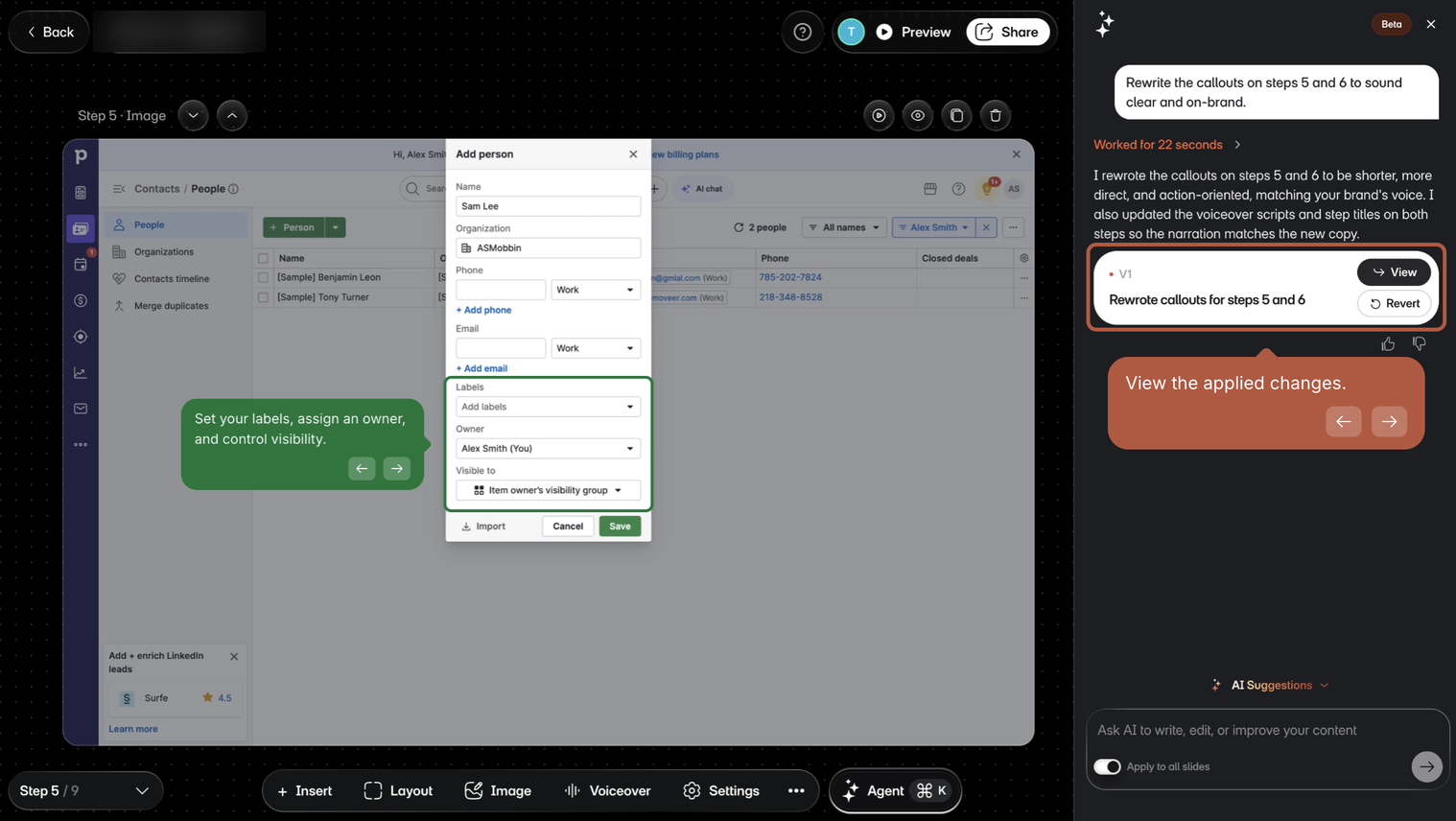
Agent applies changes to text and design right away. Each change gets a card in the panel: select View to see it, or Revert to undo it. After you revert a change, Re-apply brings it back.
Bigger changes wait for you. Before Agent deletes, merges, hides, or reorders steps, adds voiceover, or changes settings, it asks "Confirm changes?". Select Apply changes to go ahead, or Cancel. When the change deletes steps, the button reads Delete permanently, and those steps can't be brought back.
What Agent can change
- The words on your steps: titles, callouts, and descriptions, and the text on the intro and outro.
- The design of a step: its layout, background, colors, and text boxes.
- The steps themselves: merge, hide, reorder, or delete them.
- Voiceover: the scripts and the audio.
- The language of the whole walkthrough.
- Private details: it blurs names and email addresses.