Install the Layerpath Chrome extension
Add the Layerpath extension to Chrome and pin it to the toolbar, so you can record tasks in Chrome as you do them. Remove it from Chrome any time.
What the extension does
The Layerpath extension records a task in Chrome as you do it. Each click becomes a step, and the recording becomes a new project in Layerpath. You start and stop recordings from the Layerpath icon in the Chrome toolbar.
Layerpath checks whether the extension is installed. Until it is, Home shows Install extension at the top right.
When to use the extension
- You can do the task in Chrome right now, and you want each click captured in order.
- You'd rather do the task once than take a screenshot of every screen.
If you already have screenshots, a recording, or a Loom link, you don't need the extension. Start with Create with Agent instead.
Install the extension
To install it:
- On Home, select Install extension at the top right. It shows as a download icon until you point to it. You'll see the extension in the Chrome Web Store, in a new tab.
- Select Add to Chrome.
- Select Add extension to confirm.
- Go back to Layerpath. You'll see "Pin Layerpath for quick access".
You can also start from Record your screen on Home, or from Install Chrome Extension in Create > Record your screen.
Pin it to the toolbar
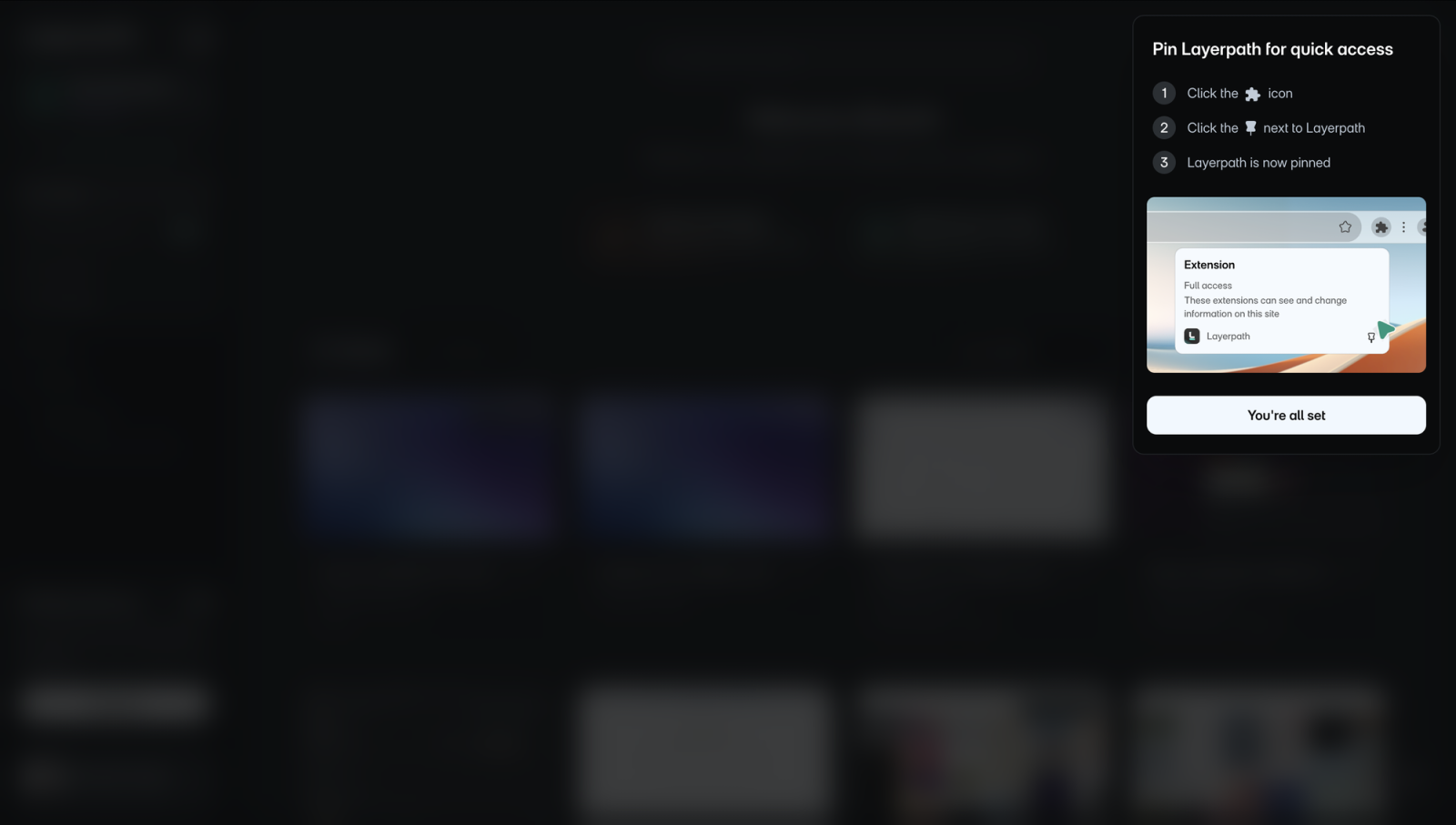
Chrome keeps new extensions inside its Extensions menu. Pin Layerpath so its icon stays in the toolbar, where you start and stop recordings.
To pin it:
- In the Chrome toolbar, select the Extensions icon, the puzzle piece.
- Find Layerpath in the list.
- Select the pin next to it. You'll see the Layerpath icon in the toolbar.
Layerpath shows these steps in "Pin Layerpath for quick access". Once the extension is pinned, the window's button changes from Got it to You're all set.
Sign in before you record
The extension saves recordings to your Layerpath account. Sign in to Layerpath in Chrome before you start a recording.
Remove the extension
Removing the extension doesn't delete the projects you made with it. They stay in your workspace.
To remove it:
- In the Chrome toolbar, right-click the Layerpath icon.
- Select Remove from Chrome.
- Select Remove to confirm.
To install it again, select Install extension on Home.
If something goes wrong
- Install extension still shows after you install: go back to the Layerpath tab, or reload it. Layerpath checks for the extension again.
- A recording won't start: see Recording won't start.