Reuse media from your library
Start a project from screenshots and videos already in your workspace's library, mix them with new uploads, and delete library media you no longer need.
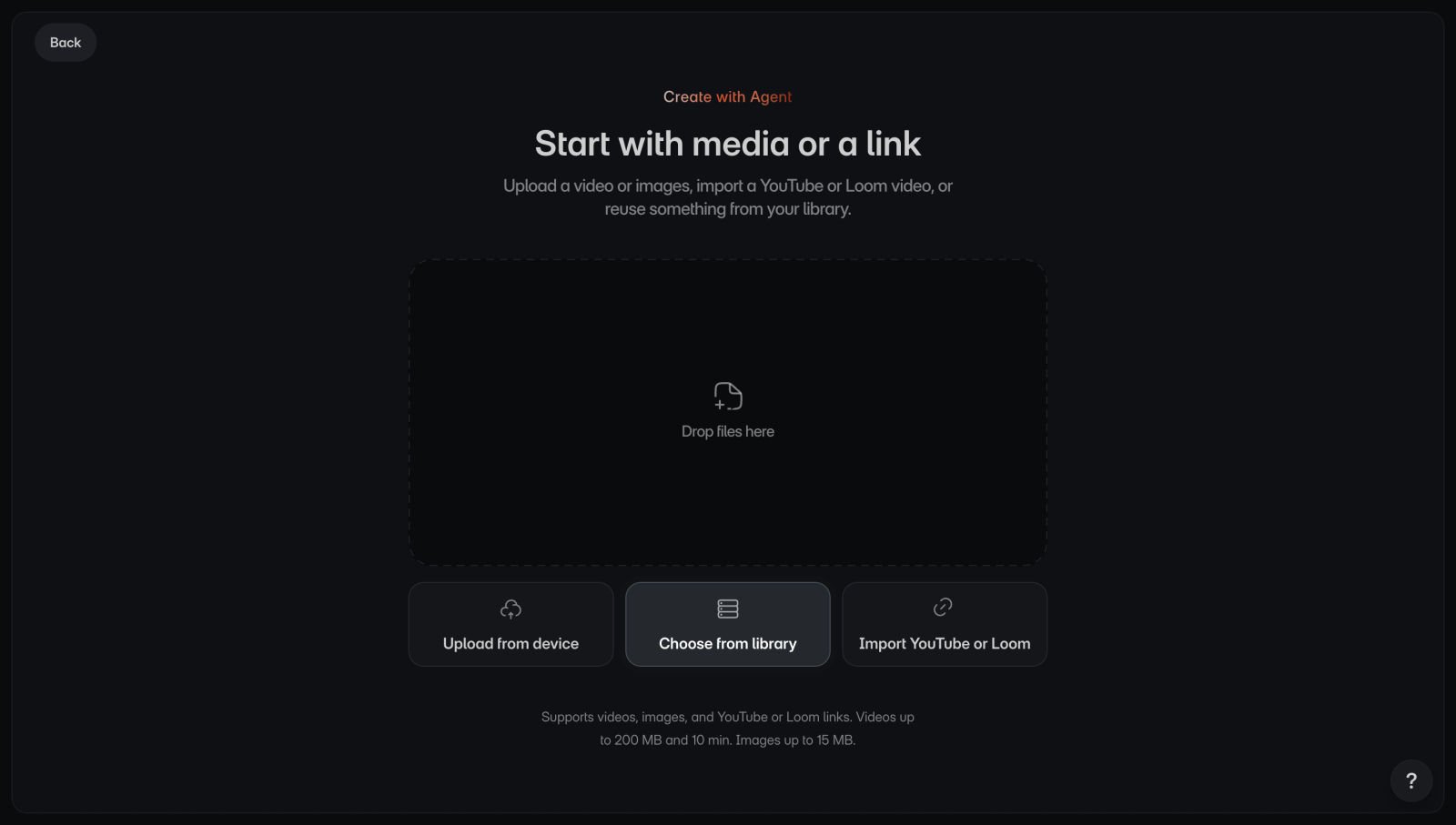
Add media from the library
The library holds the images and videos from your workspace's projects. Each one is marked In use or Unused, depending on whether a step uses it.
To add media from the library:
- On Home, select Create with Agent. You'll see Start with media or a link.
- Select Choose from library. You'll see the Library. If the button isn't there, your workspace doesn't have a project yet.
- Optional: To narrow the list, select the Images or Videos tab, or a project under Projects.
- Select the images or videos you want. Each one shows a number for the order you picked it in.
- Select Add source. You'll see What do you want to create? with your media.
- Describe what the walkthrough should teach.
- Select Create project, the arrow beside your prompt. You'll see the project open with its progress.
Library media counts toward the same limits as uploads: up to 100 images and 5 videos per project. You can add files from your device to the same project, but not a Loom link.
Delete media from the library
To delete media:
- Open the Library from Create with Agent > Choose from library.
- Select the images or videos you want to delete.
- Select Delete at the bottom of the library. You'll see a message that asks you to confirm.
- Select Delete. You'll see how many were deleted, such as "2 assets deleted".
Deleted media is permanently removed from your library. Steps that already use it keep it.