Point to something with an arrow
Draw an arrow on a step to point viewers at a control or a number, then change its color or where it points, and arrange, lock, copy, or remove the arrow.
Add an arrow
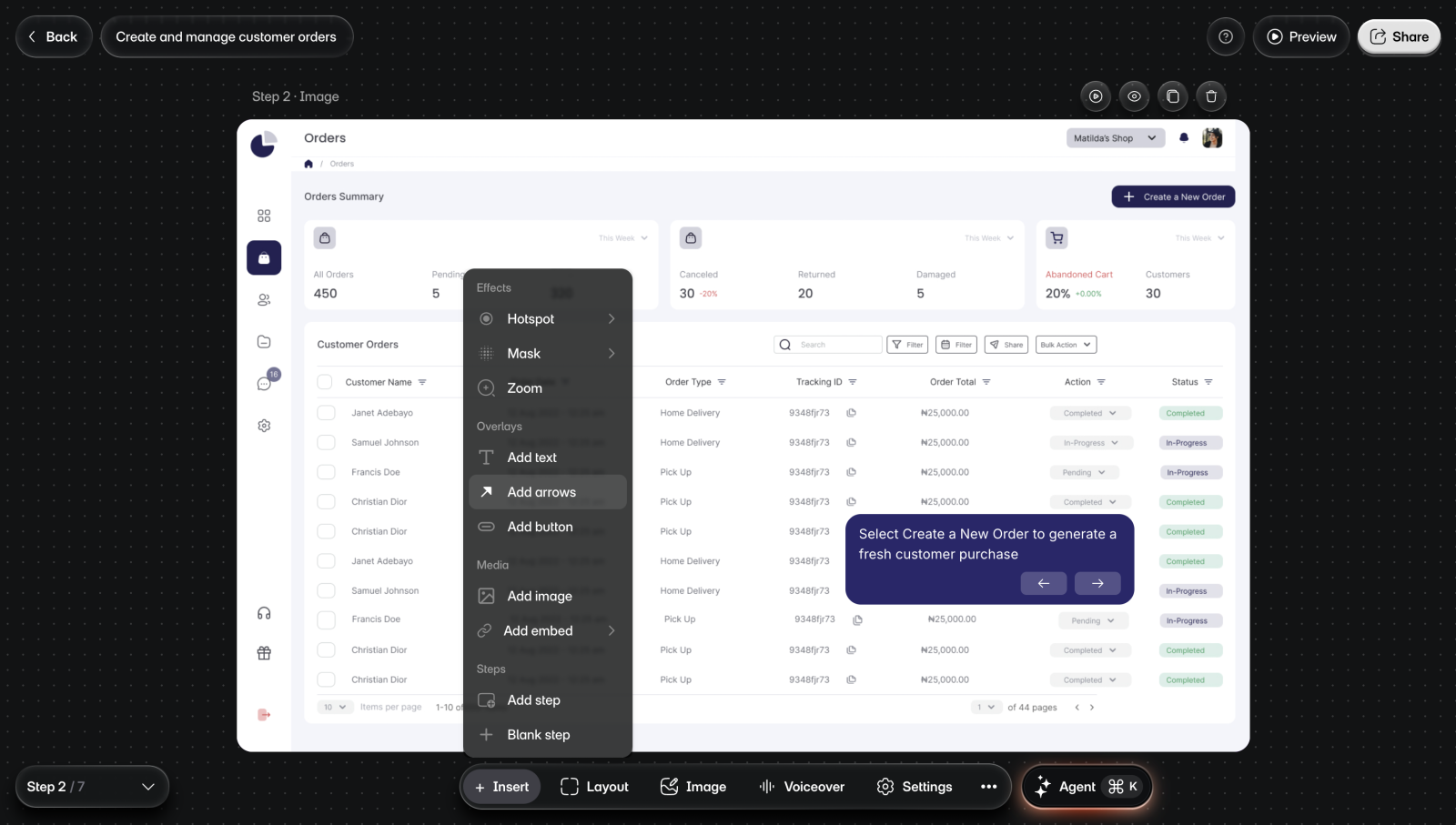
Arrows can go on any step except the intro, the outro, and a step made from a screen recording.
To add an arrow:
- Go to the step.
- Select Insert > Add arrows.
- Press where the arrow should start, drag to what it points at, and let go. You'll see the arrow with its toolbar.
A press without a drag adds a short arrow that points right. The arrow's color is picked to stand out against the spot where you start it.
Change an arrow's color or aim
Select the arrow first.
- To change its color, use the color swatch in its toolbar. Color is the only style option, and the line is always 3 px wide.
- To change where it points, drag the handle at either end.
- To move it, drag the arrow itself.
Show arrows in Settings > Callouts is about the arrow buttons on callouts. It doesn't change the arrows you draw.
Arrange, lock, or remove an arrow
Select the arrow to see its toolbar.
- To lock it in place, select Lock. A locked arrow's toolbar shows only the lock button. Select it to move the arrow again.
- To copy it, select Duplicate. To remove it, select Delete or press the Delete key.
- To change which items it sits above, open More options and choose Bring to front, Bring forward, Send backward, or Send to back.