Add a button to a step
Put a button on a step that takes viewers to another step or opens a web page, then set its label, size, corners, and colors, or copy or remove the button.
What a button looks like
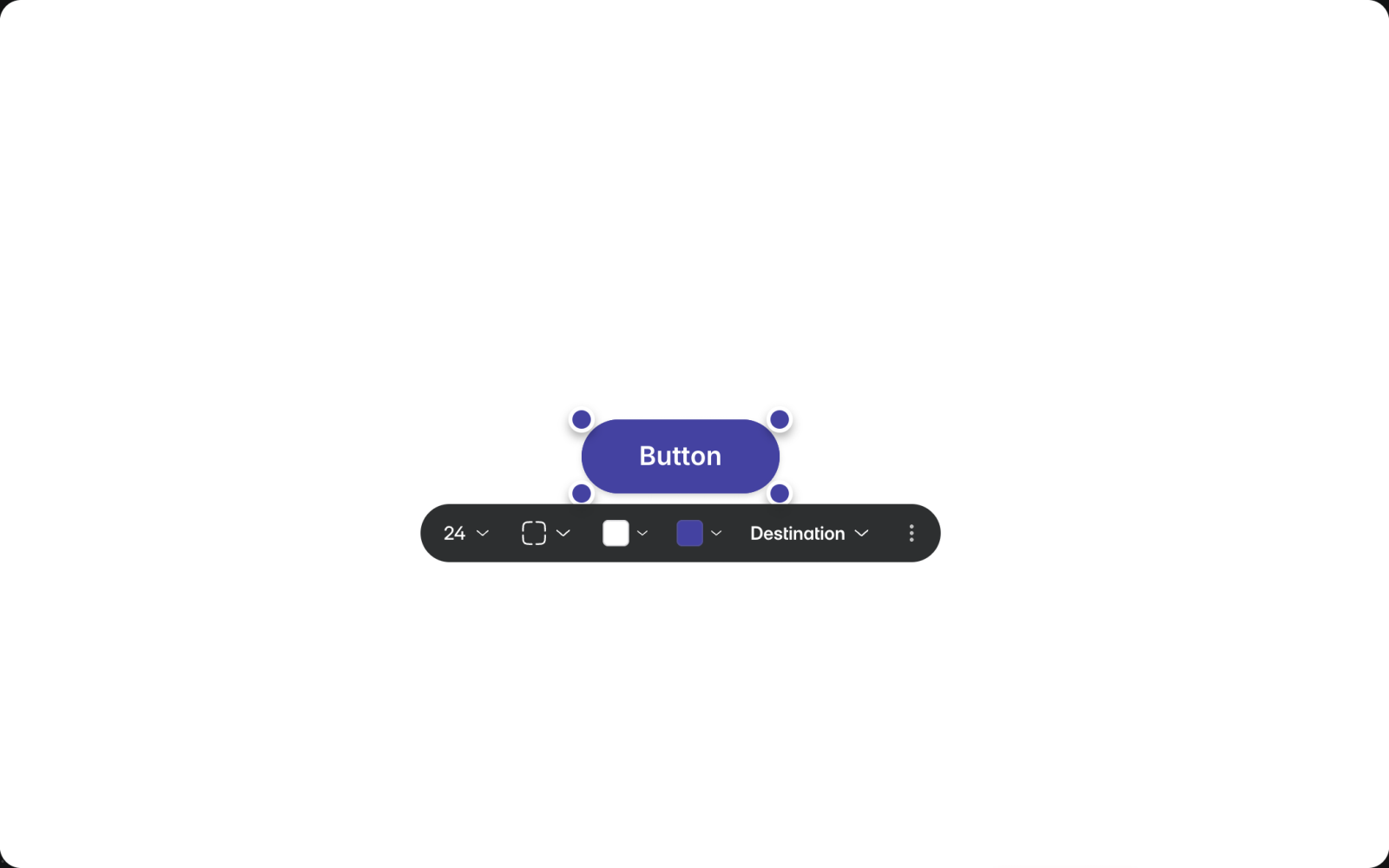
A button sits on top of the step, and viewers can select it. A button set to a step takes viewers to that step. A button set to an external link opens the page in a new tab.
Add a button
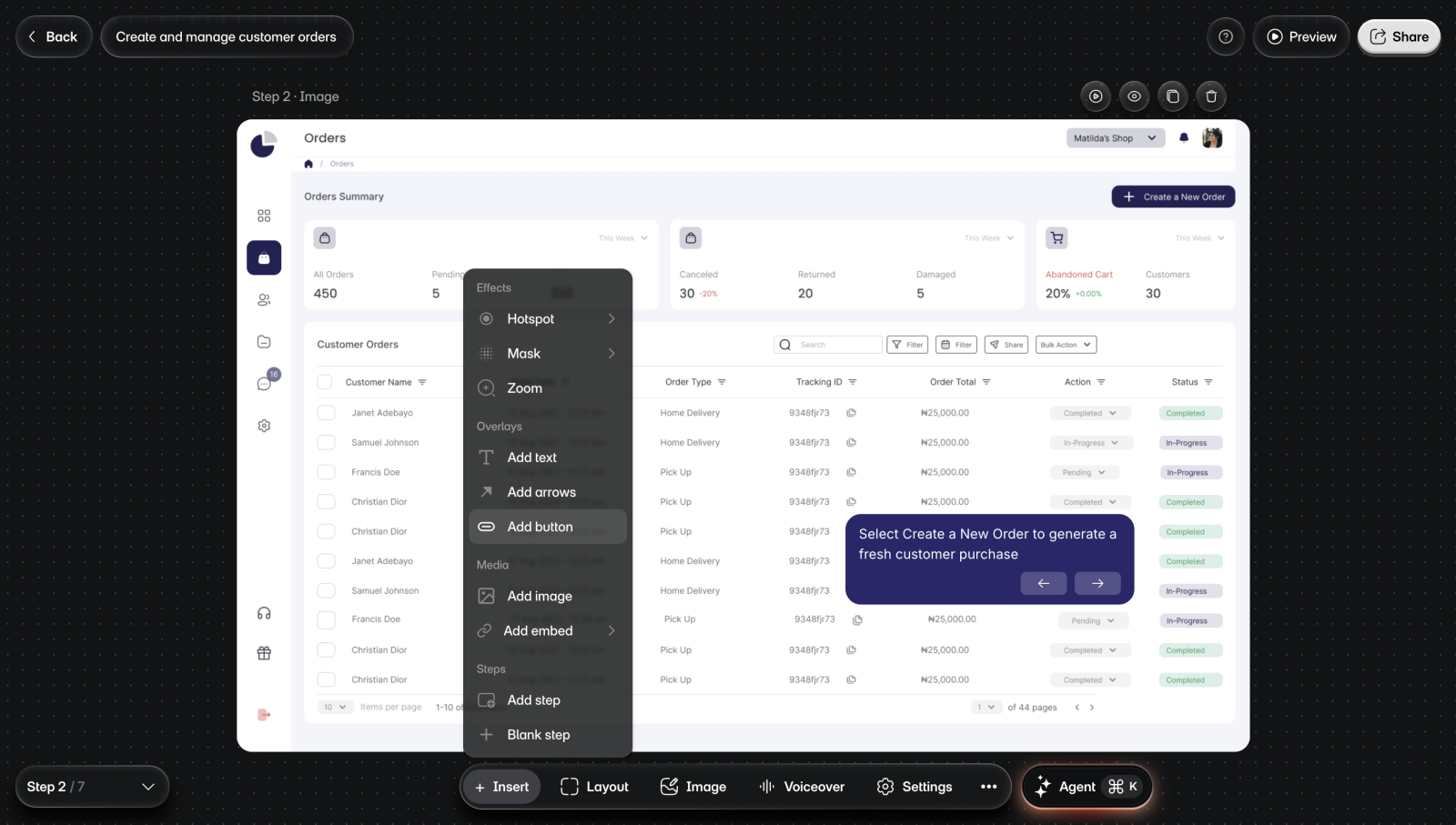
To add a button:
- Go to the step.
- Select Insert > Add button.
- Select the spot on the step where it goes. You'll see a button labeled "Button", with its toolbar.
- Replace "Button" with your label.
Set where a button goes
A button does nothing for viewers until it has a destination.
To set it:
- Select the button.
- Open Destination in its toolbar.
- Choose a step, or select External link, paste the URL, and press Enter.
The menu lists the intro, every step by number, and the outro. Once a destination is set, the toolbar shows it in place of Destination. If the toolbar still says Destination, the button has none.
Style a button
Select the button to see its toolbar.
| Control | What it does |
|---|---|
| Font size | Sets the label size, from 10 to 48. |
| Corners | Sets Sharp, Smooth, or Rounded corners. |
| Color swatches | Set the label color and the button color. |
New buttons start at size 16 with Smooth corners and white text. To move a button, drag it. To resize it, drag its handles.
Remove a button
Select the button, open the three dots in its toolbar, and select Delete. The same menu has Duplicate. It also has Bring to front, Bring forward, Send backward, and Send to back, which change which items the button sits above.
Limits
- A button with no destination does nothing when viewers select it.
- Insert isn't on the intro or outro, and on a step made from a screen recording it offers only new steps. Buttons from Insert can't go on those steps. The intro and outro have buttons of their own.