Add text to a step
Place a text box on a step and type in it, then set its font, size, style, color, and alignment, link some words, and arrange, lock, or remove the box.
What text looks like
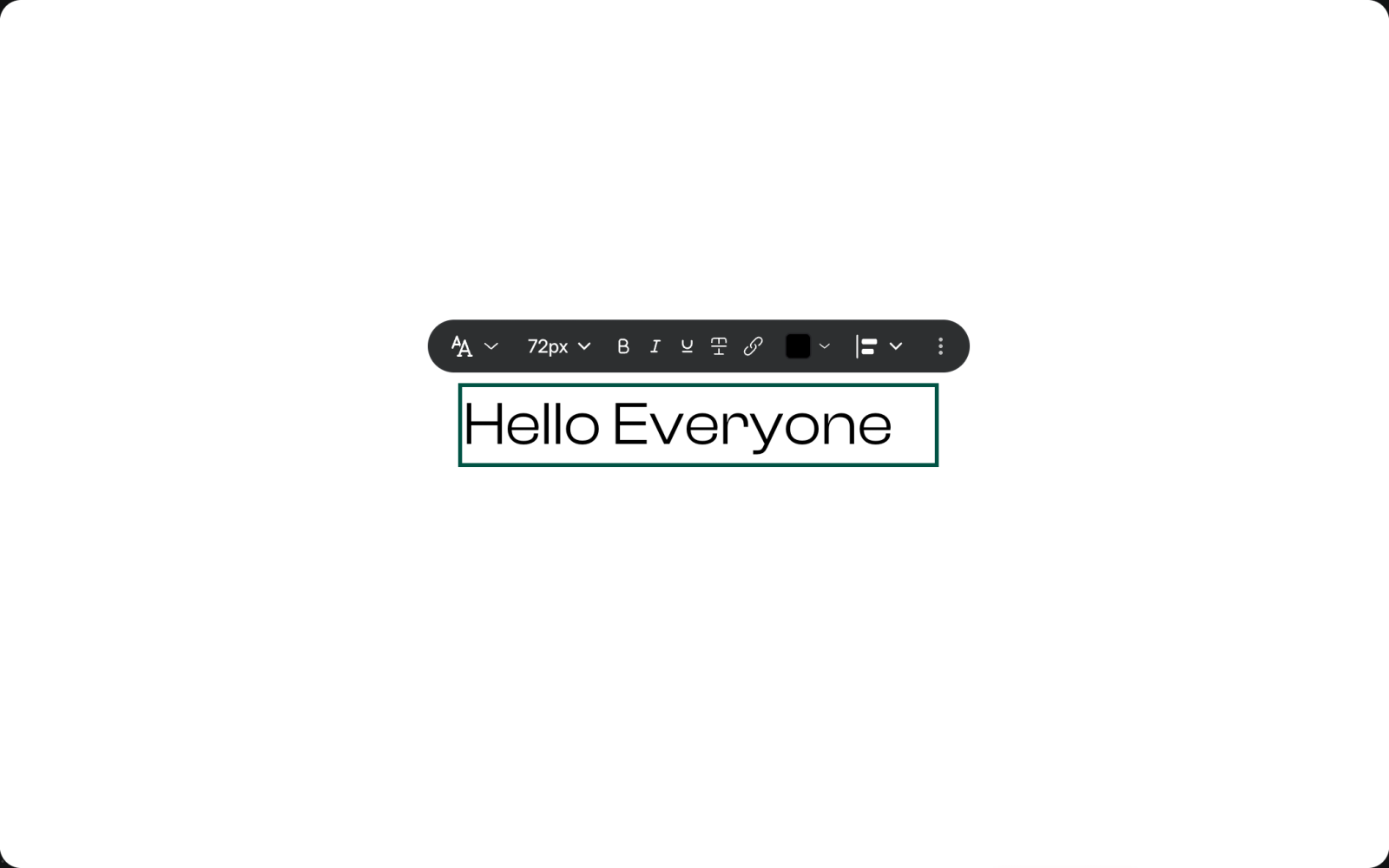
A text box sits on top of the step, where you place it. Viewers see it as part of the step, in the font, size, and color you choose.
Add text
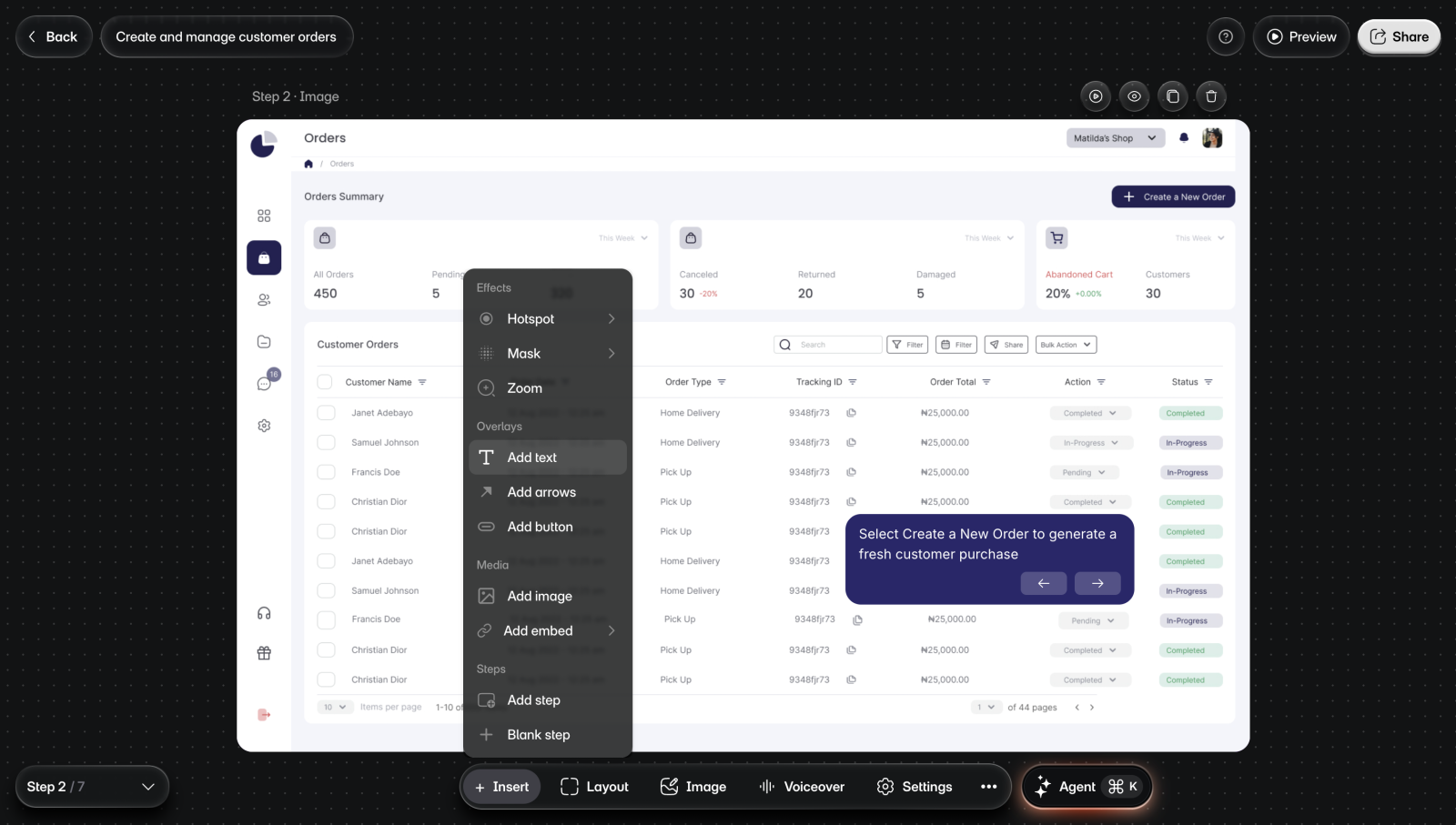
To add text:
- Go to the step.
- Select Insert > Add text.
- Select the spot on the step where the text goes. You'll see an empty text box, ready for typing.
- Type your text.
- Select anywhere outside the box when you're done.
New text starts in Inter, in a color that stands out against that part of the step. To edit the text later, select the box, then select it again to type.
Format text
Select the text box to see its toolbar.
| Control | What it does |
|---|---|
| Font | Picks Inter, Clash Display, Instrument Serif, Lora, or Allura, or a font you search for. |
| Size | Sets the size, from 12 to 112 px. |
| Bold, Italic, Underline, Strikethrough | Styles the text. |
| Color swatch | Sets the color of the words you select, or of the whole box. |
| Alignment | Sets Left align, Center align, or Right align. |
Add a link to text
To link some words:
- Select the text box, then select it again to edit the text.
- Select the words to link.
- Select Add link in the toolbar.
- Paste the URL and select Save. The words now link to that page.
Arrange, lock, or remove text
Select the text box and open the three dots in its toolbar.
- Bring to front, Bring forward, Send backward, and Send to back change which items the text sits above.
- Lock keeps the box from moving or changing. Choose the same item again to release it.
- Duplicate adds a copy, and Delete removes the box.
Limits
- Insert isn't on the intro or outro, and on a step made from a screen recording it offers only new steps. Text boxes can't go on those steps.
- The size menu runs from 12 to 112 px.
- A locked text box can't be edited until you release the lock.