Share a walkthrough as a step-by-step guide
Open a walkthrough's step-by-step guide, then share it at its own link, copy its steps into a document, or download the whole guide as a PDF.
What it looks like
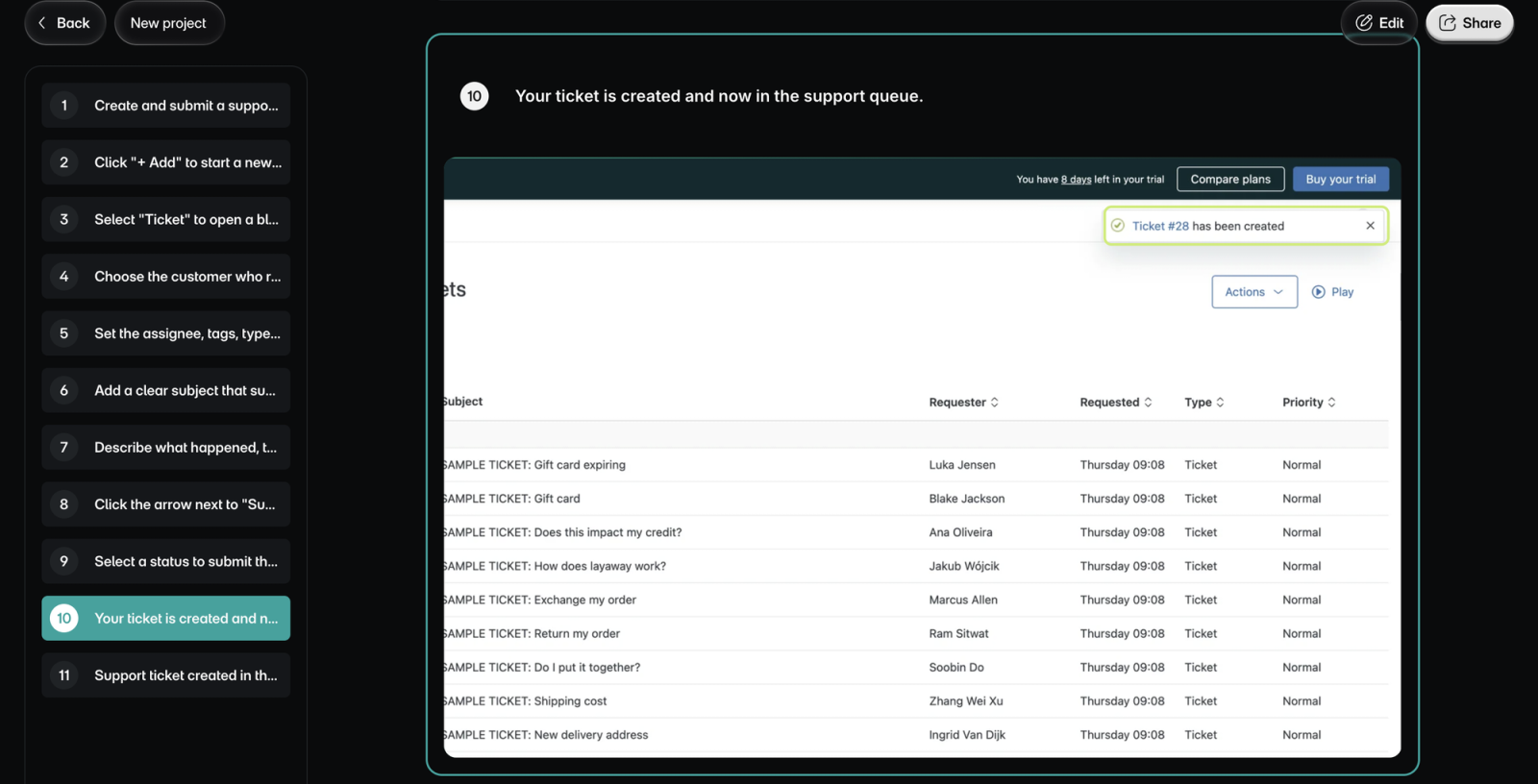
A guide shows a walkthrough's steps as one page to read, from the first step to the last. Each step has its title, its text, and its screenshot or video. On wider screens, the step titles are listed beside the page, and selecting one jumps to that step.
Use the guide when people need to follow the steps at their own pace or keep them as a reference. Use the walkthrough's share link when they should click through it.
Open the guide
To open the guide:
- Open the project in the editor and select Share.
- Select Step-by-step guide. The guide opens in Layerpath, with Edit and Share at the top.
- Optional: select Edit to go back to the editor.
The guide is made from the walkthrough's steps and has no editor of its own.
Share the guide's link
The guide and its walkthrough share one publish state. Publishing either one publishes both, and on the Free plan they count as one of your 3 published projects.
To publish the guide and copy its link:
- On the guide, select Share. You'll see a switch labeled Published or Unpublished.
- If it says Unpublished, turn the switch on. You'll see "Guide published and link copied".
- Optional: to copy the link again, select Copy link. You'll see "Link copied".
Anyone with the guide's link can read it without signing in.
Copy the steps
Guides don't export to Word or PowerPoint. Copy the steps instead, then paste them into either one. The copy keeps the guide's formatting: its title, a numbered list of the steps, then each step's title, text, and screenshot. Apps that take only plain text get the words, with links to the screenshots.
To copy the steps:
- On the guide, select Share.
- Select Copy steps. You'll see "Preparing smart copy", then "Guide copied to clipboard".
- Paste the steps into your document.
You can copy the steps whether or not the guide is published.
Download it as a PDF
To download the guide as a PDF:
- On the guide, select Share.
- Select Download PDF. You'll see "Preparing screenshots", then "Generating PDF".
- When you see "PDF downloaded", open the file from your downloads.
The PDF doesn't need the guide to be published either. To see what the PDF holds, or to download it from the editor, see Guide PDF.
Limits
- A guide has no embed code. To show the steps on your site, embed the walkthrough instead.
- A guide can't be published or unpublished apart from its walkthrough.
- Only Owners, Admins, and Editors can publish a guide, copy its steps, or download its PDF.