Export a walkthrough as a video
Turn a walkthrough into an MP4 video from Share, with your choice of quality, frame rate, zoom, closed captions, and music, then download it.
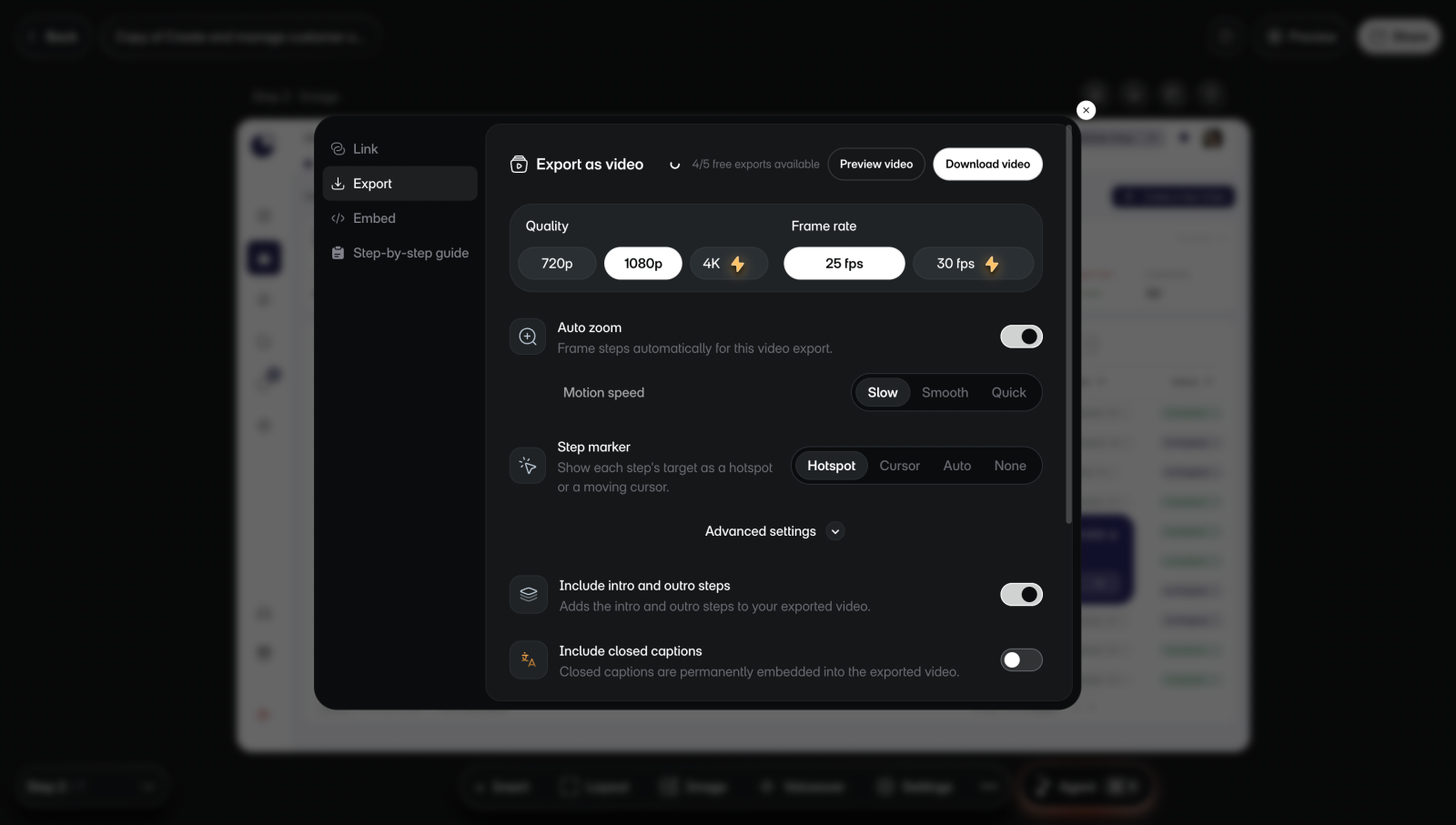
Choose the options
You don't need to publish a walkthrough to export it as a video.
To choose the options:
- Open the project in the editor and select Share.
- Select Export. You'll see Export as video and its options.
- Set the options you want. For the intro and outro, closed captions, and background music, select Advanced settings.
- Optional: select Preview video to watch the video with these options before you download it.
| Option | What it does | Default |
|---|---|---|
| Quality | Sets the resolution: 720p, 1080p, or 4K. 4K needs a paid plan. | 1080p |
| Frame rate | 25 fps or 30 fps. 30 fps needs a paid plan. | 25 fps |
| Auto zoom | Frames each step automatically in this video. | On |
| Motion speed | How auto zoom moves: Slow, Smooth, or Quick. Shows when Auto zoom is on. | The walkthrough's own speed, or Slow |
| Step marker | How each step's target is shown: Hotspot, Cursor, Auto (a cursor for clicks, a spotlight for areas), or None. | Hotspot |
| Include intro and outro steps | Adds the intro and outro to the video. Shows when either one has text. | On |
| Include closed captions | Embeds closed captions in the video. Needs a voiceover. | Off |
| Background music | Adds a track: Ambient, Harmonics, Upbeat, Night lights, Bright, or Modern. | None |
Download the video
Select Download video. You'll see "Rendering video..." and its progress, and you can keep working while it renders. When it's done, the MP4 file downloads to your device.
Layerpath also emails a link to the video when it's ready, and sends a different email if the render fails. Both go to the Owner who created the workspace, even when someone else exported.
On the Free plan, the tab shows how many free exports you have left. When they're used up, Upgrade to export takes the place of Download video.
How long it takes
The progress shows as a percentage while the video renders. If it's still rendering after 15 minutes, you'll see "Export is taking longer than expected". The render may still finish.
On a new project, export waits until the project's voiceover and video are ready, even if you can already share it.
If something goes wrong
- If you see "Voiceover and video are still being prepared.", the project is still processing. Try again once it's done.
- If you see "Export failed", select Try again, then select Download video.
- If the video doesn't download, see Video export didn't arrive.