Share a walkthrough with a link
Publish a walkthrough from Share in the editor, copy its link to send to the people who need it, and turn sharing off again whenever you want.
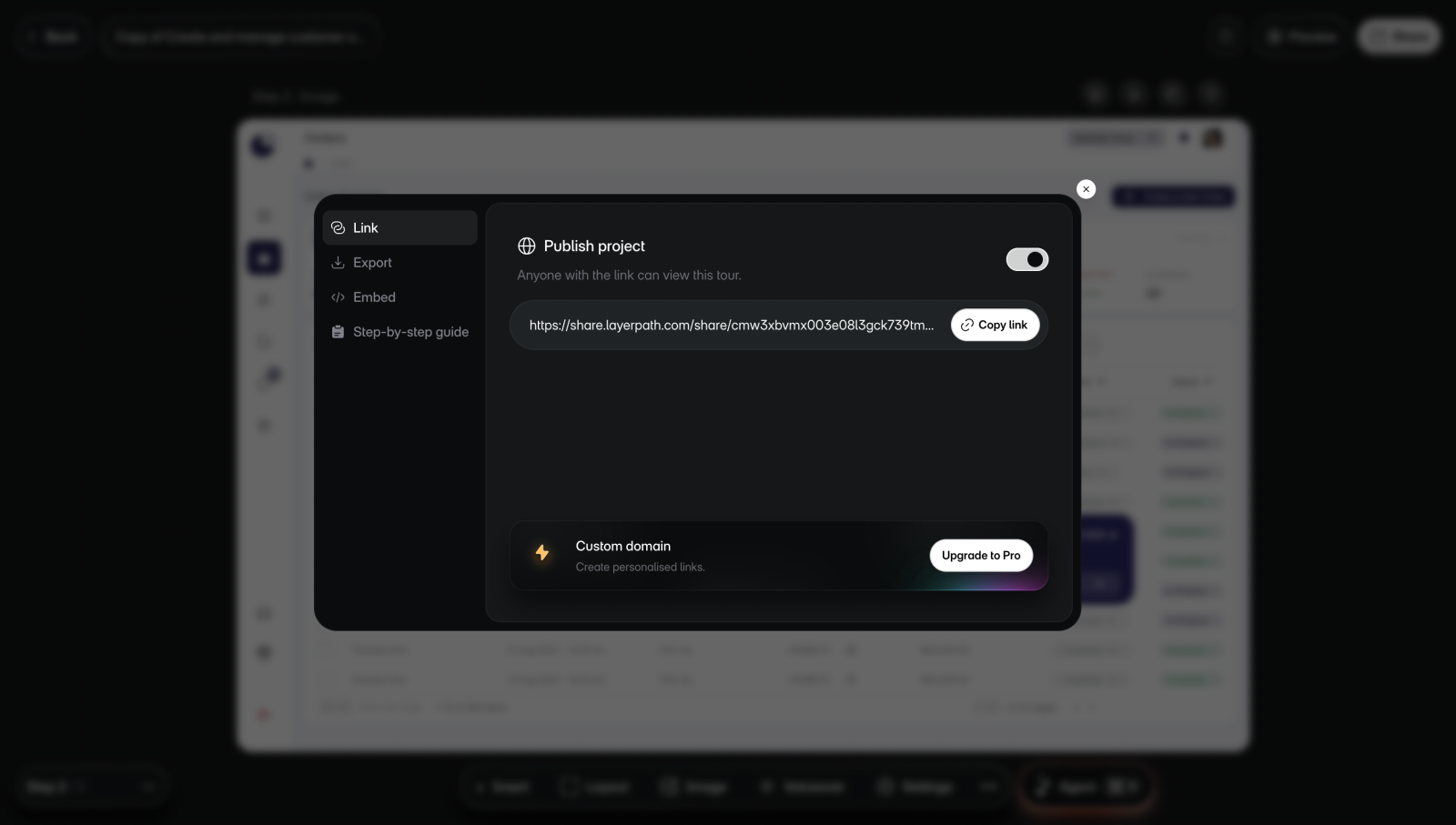
Publish and copy the link
Publishing puts the walkthrough at a link that anyone with the link can open. Its step-by-step guide is published with it.
To publish a walkthrough and copy its link:
- Open the project in the editor and select Share. You'll see the Link tab.
- Turn on Publish project. You'll see "Tour published and link copied".
- Paste the link where your viewers will find it.
- Optional: to copy the link again later, select Copy link. It changes to Copied.
The Free plan allows up to 3 published projects at a time, and a walkthrough with its guide counts as one. If your workspace has a custom domain connected, the link uses it.
What a pasted link shows
In Slack and other apps that show link previews, the preview's title is the project's name. The text under it is the project's description, saved when the project was made.
The preview image shows the project's name above the screenshot or image picked for the intro. If none was picked, it shows a screenshot from the walkthrough. The background fades to the project's brand color.
To change the title, rename the project. To change the image, pick another screenshot or image for the intro. See Intro and outro.
What viewers see
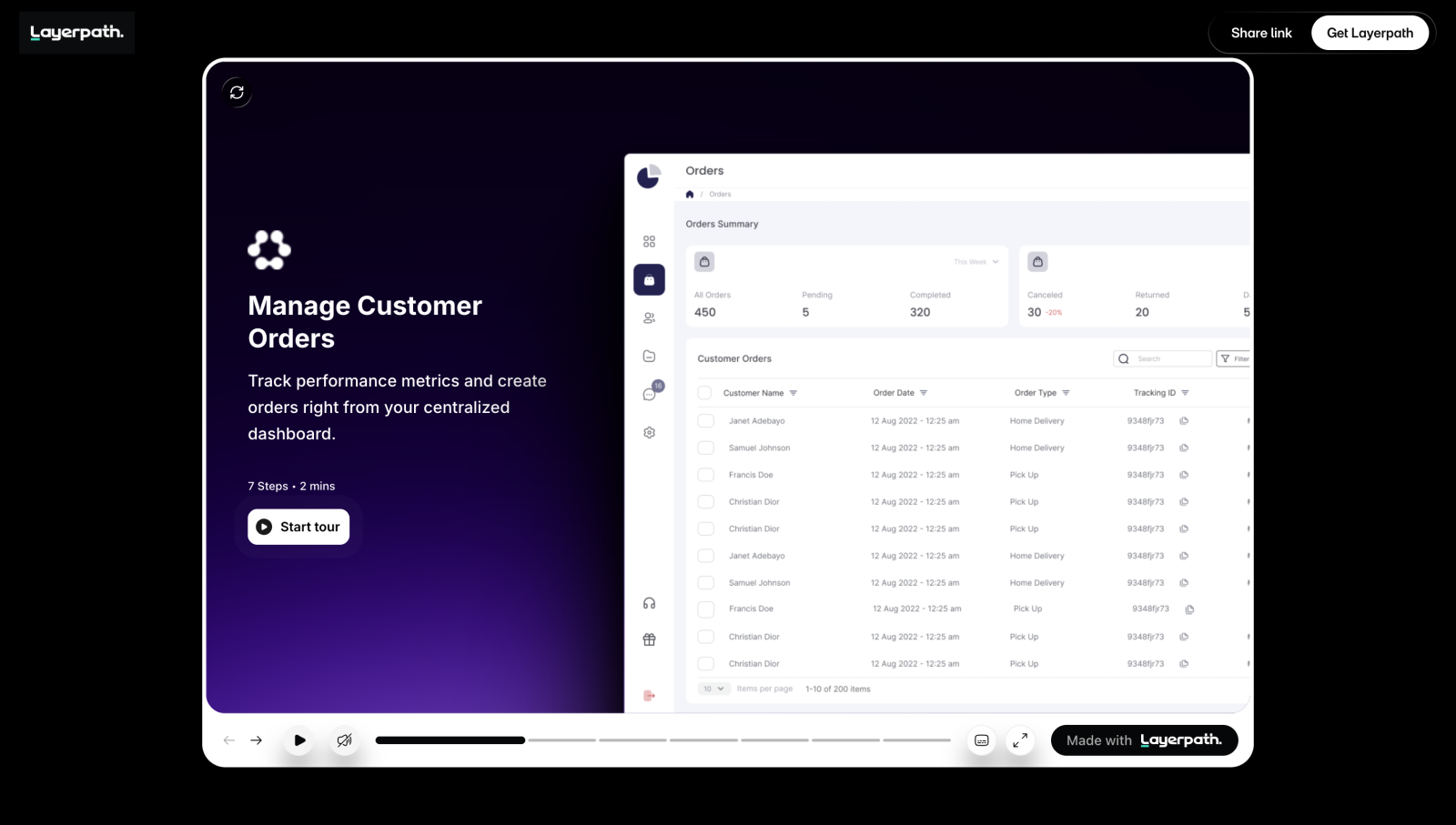
The link opens the walkthrough in the viewer's browser, and they click through it one step at a time. To share the steps as a page to read instead, use the guide's link. See Step-by-step guide.
On a phone or tablet held upright, the walkthrough fills the screen, and viewers swipe to move between steps.
The player also shows a "Made with Layerpath" badge. To remove it, turn off Watermark on the Brand identity tab in Brand memory. Turning it off needs a paid plan. On Free, larger screens also show a Get Layerpath button at the top of the page.
Stop sharing
To stop sharing, open Share and turn off Publish project. You'll see "Tour unpublished". Viewers can't open the walkthrough or its guide from their links anymore, and any embed of it shows "This tour is currently unpublished".
To share it again, turn Publish project back on. The link stays the same.
If something goes wrong
- On Free, with 3 projects already published, you'll see "Free allows up to 3 published projects at a time. Unpublish another project or upgrade to publish this one." Unpublish another project, then try again. For this and other publishing problems, see Can't publish a walkthrough.
- While the project is still processing, Share says "AI callouts are still being prepared." Wait until processing finishes, then select Share again.
- If a viewer can't open or play the walkthrough, see Walkthrough won't play.