Record your own voiceover
Record a voiceover for a step with your own microphone, or upload an audio file instead, then play it back or delete it from the recording panel in the editor.
Before you start
- A microphone, and your browser's permission to use it. If the recording panel shows Allow microphone access, select it and allow access when your browser asks.
Record a step
To record a voiceover:
- Go to the step.
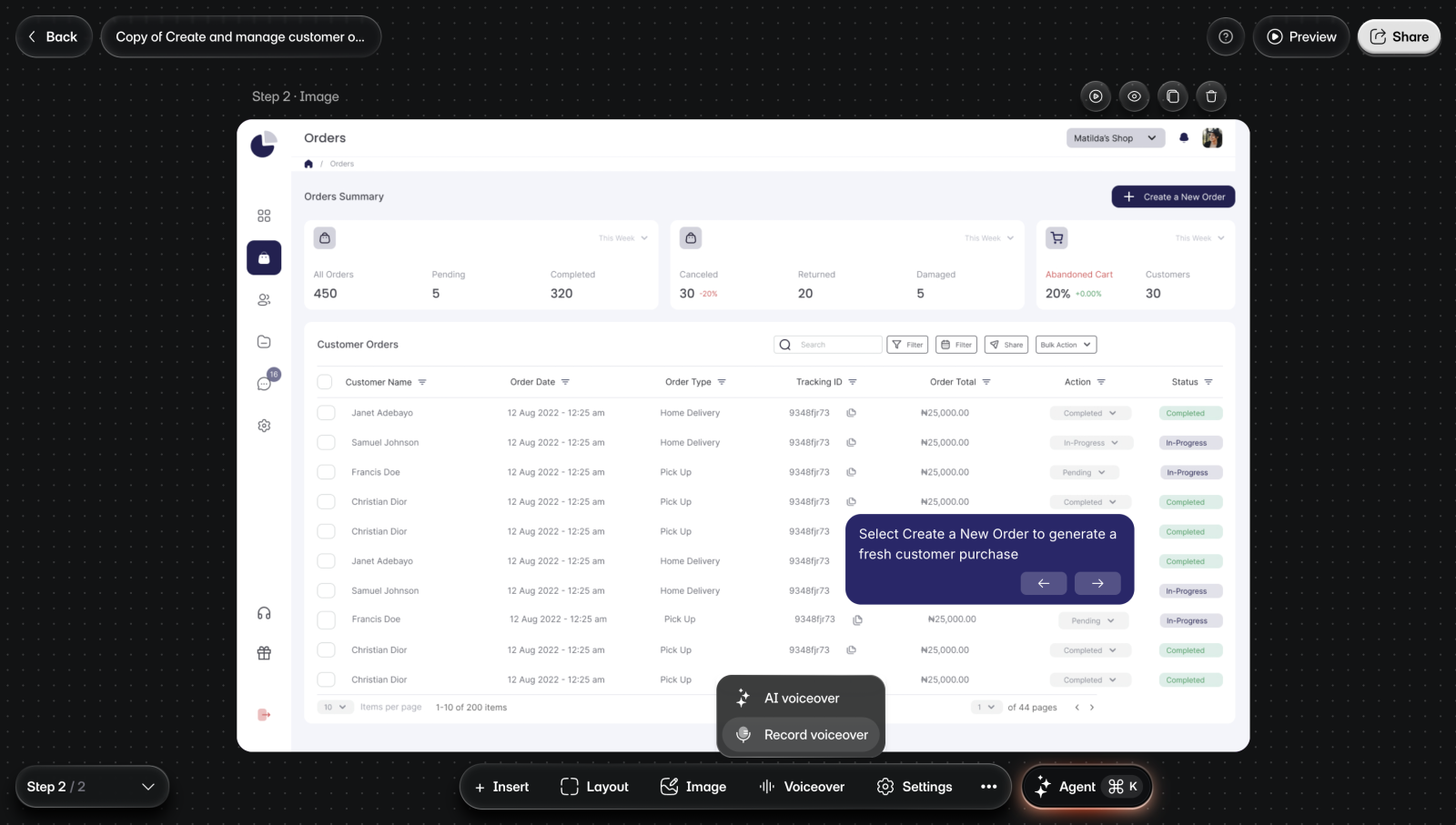
- Select Voiceover > Record voiceover in the bottom bar. You'll see the recording panel.
- Under Microphone, check that the right microphone is chosen.
- Select Record voice. You'll see a 3, 2, 1 countdown, then a timer.
- Read your script aloud.
- Optional: To take a break, select Pause recording, then Resume to carry on.
- Select Stop recording. You'll see "Voiceover saved".
A recording replaces any AI voiceover on the step. To throw a recording away before it saves, select Cancel or press Esc.
If the step already has a voiceover, the panel shows Recorded voice in place of Record voice. Select Delete first, then record. To record several steps in a row, select All steps: each step there has its own Record voice.
Upload an audio file
To upload one:
- Go to the step.
- Select Voiceover > Record voiceover in the bottom bar.
- Select Upload files.
- Choose an audio file from your device. You'll see "Voiceover saved".
If the step already has a voiceover, select Upload to replace it with a file.
Replay or delete a recording
- Select Play to hear it.
- Select Delete to remove it. You'll see "Voiceover removed".