Add an AI voiceover
Write a script for each step or copy it from the callouts, generate the voiceover in the voice and language you pick, and rewrite scripts in a new style.
What it sounds like
Each step gets a script, read aloud in the voice and language you pick. Players start muted, so viewers hear it once they select Unmute.
On a share link or an embed, viewers see the script as captions while the voiceover plays, even when the player is muted. There's no setting for these captions, but viewers can select Hide captions or Show captions in the player.
Write the script
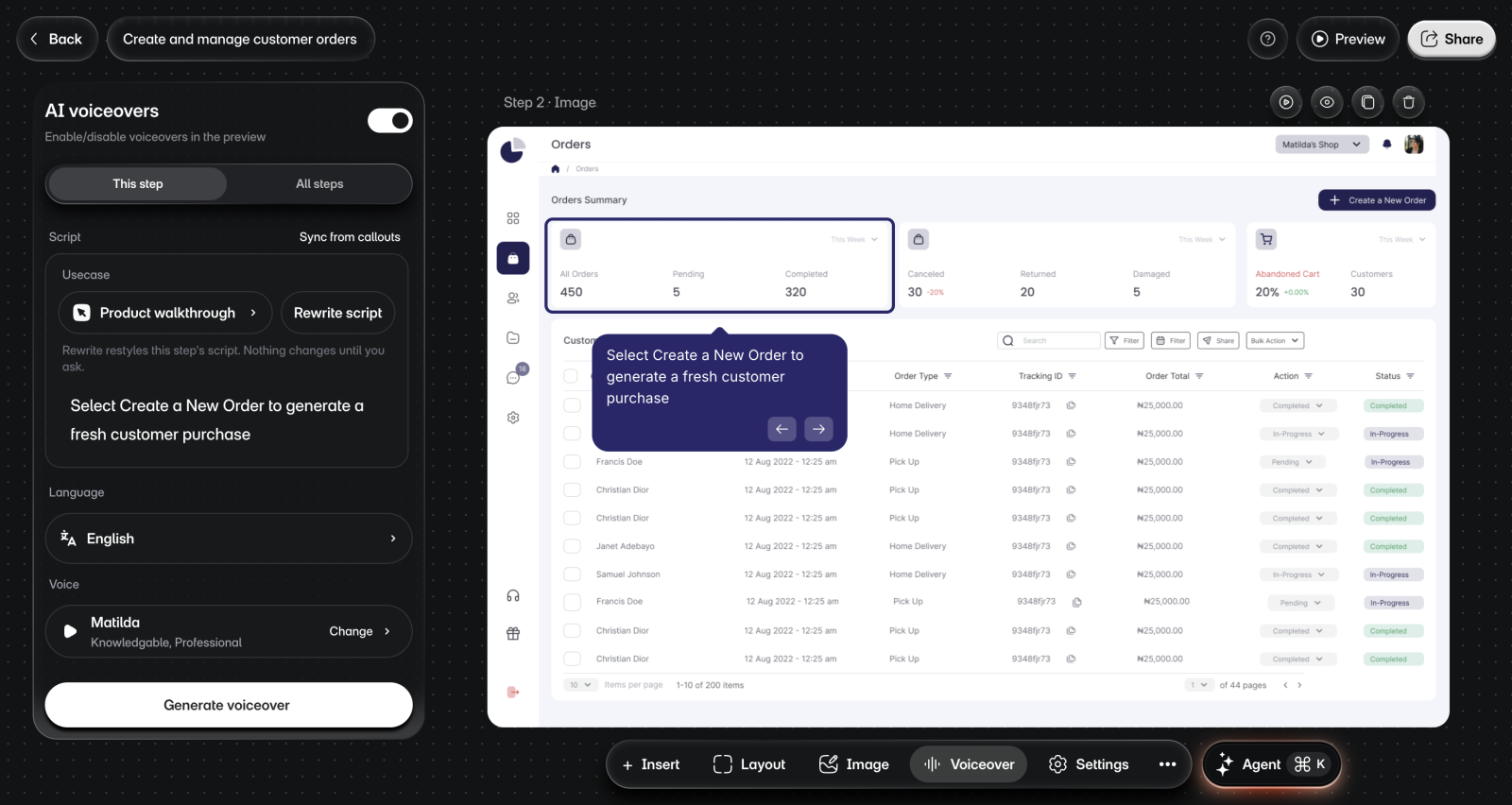
To write a script:
- Go to the step.
- Select Voiceover > AI voiceover in the bottom bar. You'll see the voiceover panel.
- Select This step to work on one step, or All steps to see every step's script.
- Type the script in the box, or select Sync from callouts to copy the callout text in.
Sync from callouts replaces the script that's there.
Generate the voiceover
To generate it:
- Under Language, choose the language the voiceover speaks.
- Under Voice, select Change and pick a voice. You'll see it under Voice.
- Select Generate voiceover on This step, or Generate all on All steps. You'll see "Voiceover generated", or how many voiceovers were generated.
- On This step, select Play voiceover to hear it.
If a script isn't in the language you chose, Layerpath translates it first, then makes the audio. Generate all skips steps with no script, and Cancel stops it. After you change the script, voice, language, or style, the button reads Regenerate voiceover.
To compare voices and see what your plan includes, go to Voices and languages.
Rewrite the scripts in another style
To rewrite them:
- Open Usecase and choose Product walkthrough, Sales demo, Customer onboarding, or Internal training.
- Select Rewrite script on This step, or Rewrite scripts on All steps. You'll see "Rewritten" when it's done.
- Optional: Select Undo right away to get the old script back.
- Generate the voiceover again to hear the new script.
Choosing a style on its own changes nothing. A rewrite changes only steps that already have a script, and steps with no script stay empty.
Turn voiceovers on or off
The AI voiceovers switch at the top of the panel turns voiceover on or off for the whole walkthrough. When it's off, the walkthrough plays without voiceover, and your scripts and audio stay in place for when you turn it back on.
Limits
- On the Free plan, voiceover is in English only, and Native voices need an upgrade. Projects created on Free don't get voiceover during creation, so add it here.
- If your workspace reaches its voiceover limit, you'll see "Voiceover generation limit exceeded. Upgrade to generate more voiceovers." The pricing page shows what each plan includes.
- Older projects don't have the AI voiceovers switch.
If something goes wrong
- "Script saved, audio failed" beside a step means the script is kept and the audio didn't generate. Select Retry.
- "Not generated, the script changed" means the script changed during the run. Select Retry.
- For other problems, see Voiceover didn't generate.