Zoom in on part of a step
Add a zoom frame to a step so viewers see one part of it up close, preview the zoom in the editor, then move or resize the frame, or remove it from the step.
What a zoom looks like
A zoom frame marks the part of a step that matters most. Viewers see the step zoomed in to the area inside the frame, so small controls and text are easier to read.
Add a zoom
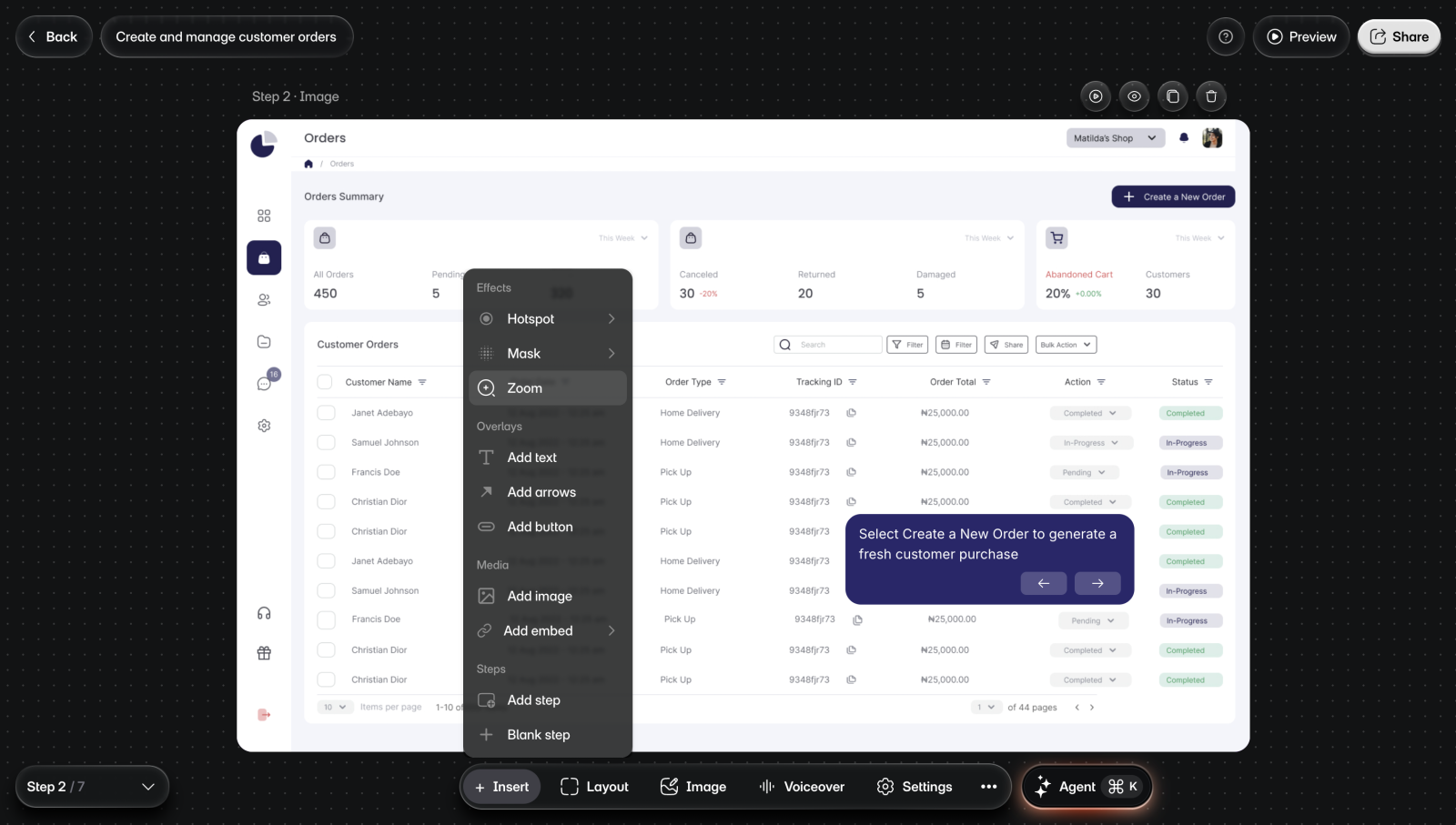
To add a zoom:
- Go to the step.
- Select Insert > Zoom. You'll see a zoom frame half the size of the step, centered on the step's hotspot if it has one.
- Drag the frame over the area viewers should see up close.
- Drag the frame's handles to resize it.
Preview and change the zoom
To see the zoom the way viewers will, select the frame, then select Preview zoom in its toolbar. The step zooms in to the frame, holds for a moment, and zooms back out.
To change the area, drag the frame or its handles, then preview again.
Remove the zoom
Select the frame, then select Delete zoom, the trash icon in its toolbar. You can also press the Delete key. Zoom shows in the Insert menu again.
Limits
- A step takes one zoom. Once it has one, Zoom leaves the Insert menu.
- Insert isn't on the intro or outro, and on a step made from a screen recording it offers only new steps. Zoom can't go on those steps.