Invite and manage members
Invite people to your workspace as an Admin, Editor, or Viewer, accept an invitation, change a member's role, remove a member, and learn what a seat is.
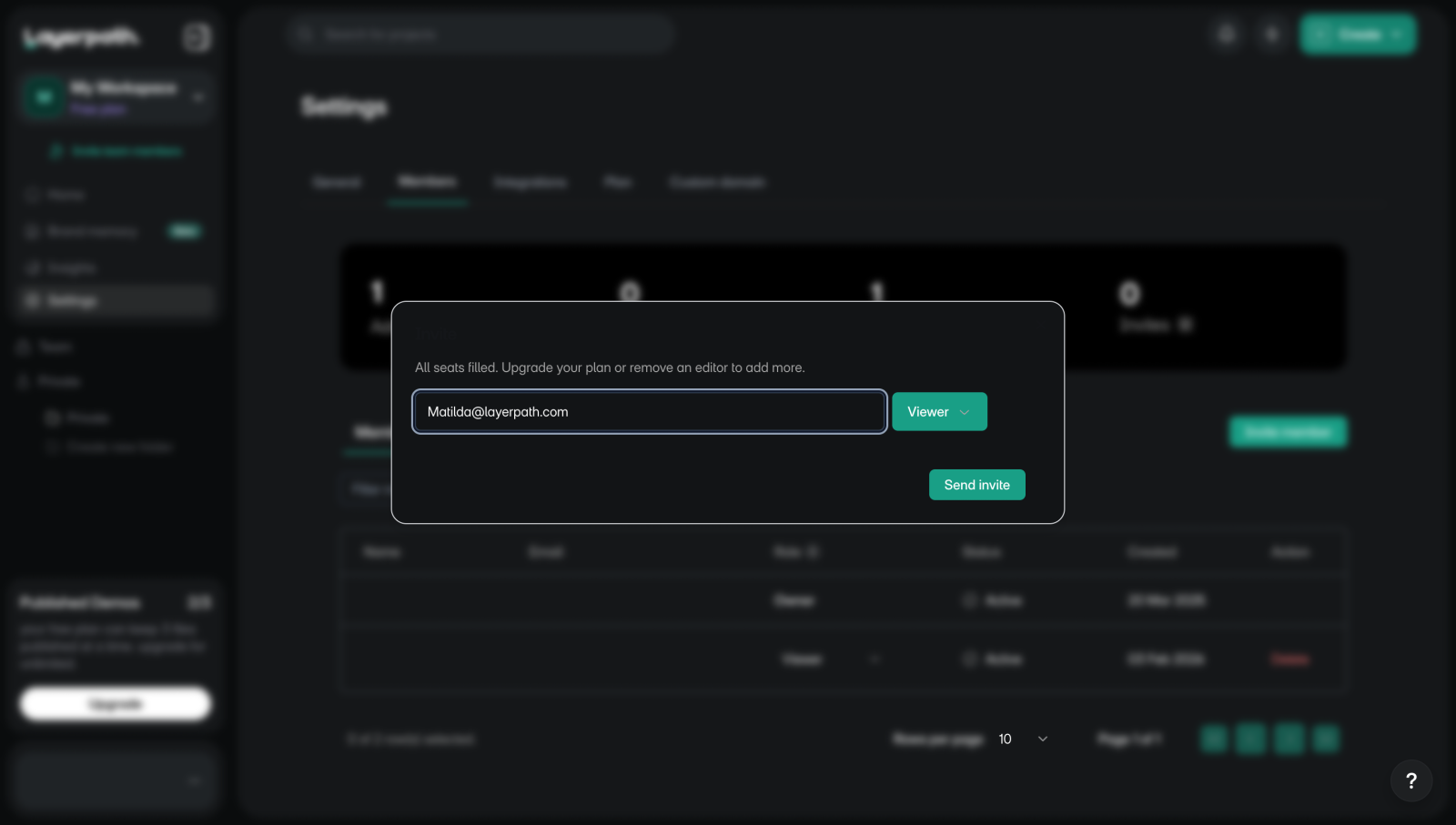
Invite members
To invite members:
- Go to Settings > Members.
- Select Invite member. You'll see the Invite window.
- Enter one or more email addresses, separated by spaces.
- Choose a role from the menu next to the addresses: Admin, Editor, or Viewer.
- Select Send invite. You'll see "Invitation sent".
Admins can open Settings, invite and remove members, and edit any project. Editors create projects and edit their own. Viewers can only view. Each invitation waits on the Pending invitations tab until the person accepts. To cancel one, select Delete in its row.
If every address already belongs to a member or a pending invitation, you'll see "Failed to send invite. User already exists."
When all seats are in use, Admin and Editor show a bolt icon, so you can invite only Viewers, and the window says "All seats filled. Upgrade your plan or remove an editor to add more." On Free, the Owner has the only seat. See Seats.
Accept an invitation
To accept an invitation:
- Open the invitation email and select its link. You'll see who invited you and the workspace's name.
- If you're asked to, sign in or sign up with the email address the invitation went to.
- Select Accept. The workspace opens.
If you're signed in with a different email, select Sign out and sign in with the invited address.
Change a member's role
Only the Owner can change roles.
To change a role:
- Go to Settings > Members.
- Find the member on the Members tab.
- In the Role column, choose Admin, Editor, or Viewer. You'll see "Role updated".
The Owner's role can't be changed, and when all seats are in use, Admin and Editor can't be chosen.
Remove a member
To remove a member:
- Go to Settings > Members.
- Optional: type a name in Filter members... to find them.
- Select Delete in their row. You'll see "Member deleted".
There's no confirmation. The Owner's row and your own have no Delete. If the workspace is connected to Slack, the list also shows Layerpath Agent, the member that makes walkthroughs in Slack.
Seats
A seat is paid authoring capacity. Owners, Admins, Editors, and pending invitations for those roles use a seat. Viewers don't. To see how many seats are in use, go to Settings > Plan and check Editor seats. The pricing page lists how many seats each plan includes.
To free a seat, remove an Admin or Editor, change one to Viewer, or delete a pending invitation for one of those roles. To add a seat, upgrade your plan, or buy an extra seat on Pro. While your Pro plan can take more, the Invite window says "All seats filled. Add an extra creator to invite as editor." Select Add an extra creator to buy one. See Plans and billing.